Viewing and Editing Site Variables
The Process Group Site Variables tool allows users to view and edit the site variable values used for a given version (CMV) of the manufacturing process model for a given process group. Changes apply to the Digital Factories in your deployment that use the given manufacturing process model version.
The tool also allows you to export and import a deployment’s site variables; for example, it allows you to export variables from a staging environment and import them into a production environment. See Importing and Exporting Site Variables.
In addition, aPriori provides the ability to define and set scenario-specific site variable overrides.
Note: Generally, users are advised not to change the default values of site variables unless specifically instructed to in Release Notes and Upgrade Guides, or advised to by aPriori Support or their aPriori Account Team members.
Note: Only users with Digital Factory administrator permissions can edit site variables.
Viewing Site Variables
-
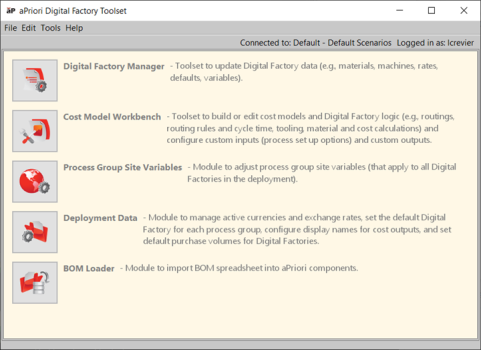
Select Tools > Digital Factory Toolset from the aPriori menu bar to display the aPriori Digital Factory Toolset window.
-
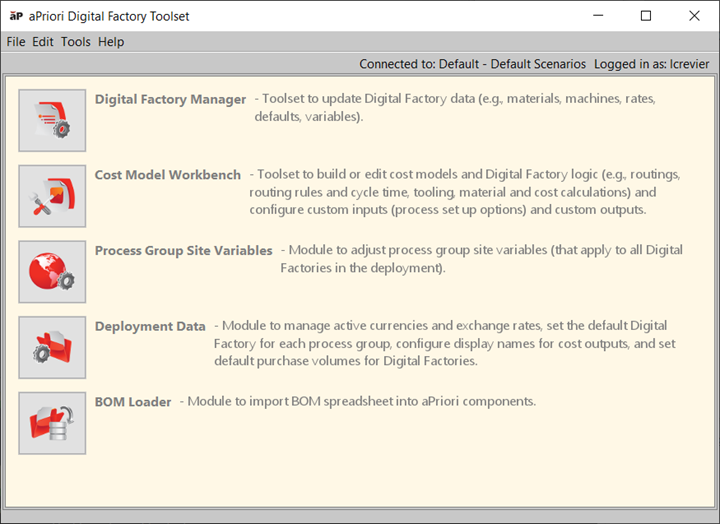
Click Process Group Site Variables to display the aPriori Process Group Site Variables tool.
-
Select a process group from the left column.
A tab opens with the process group's site variable tables.
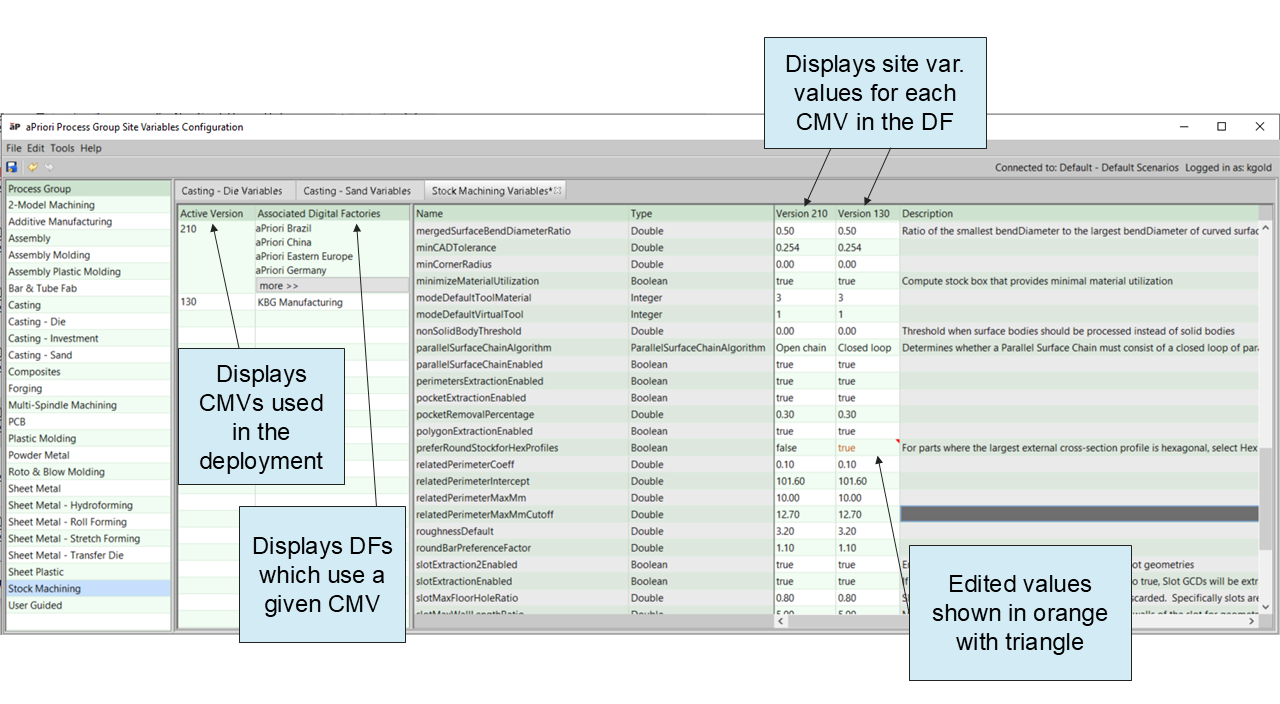
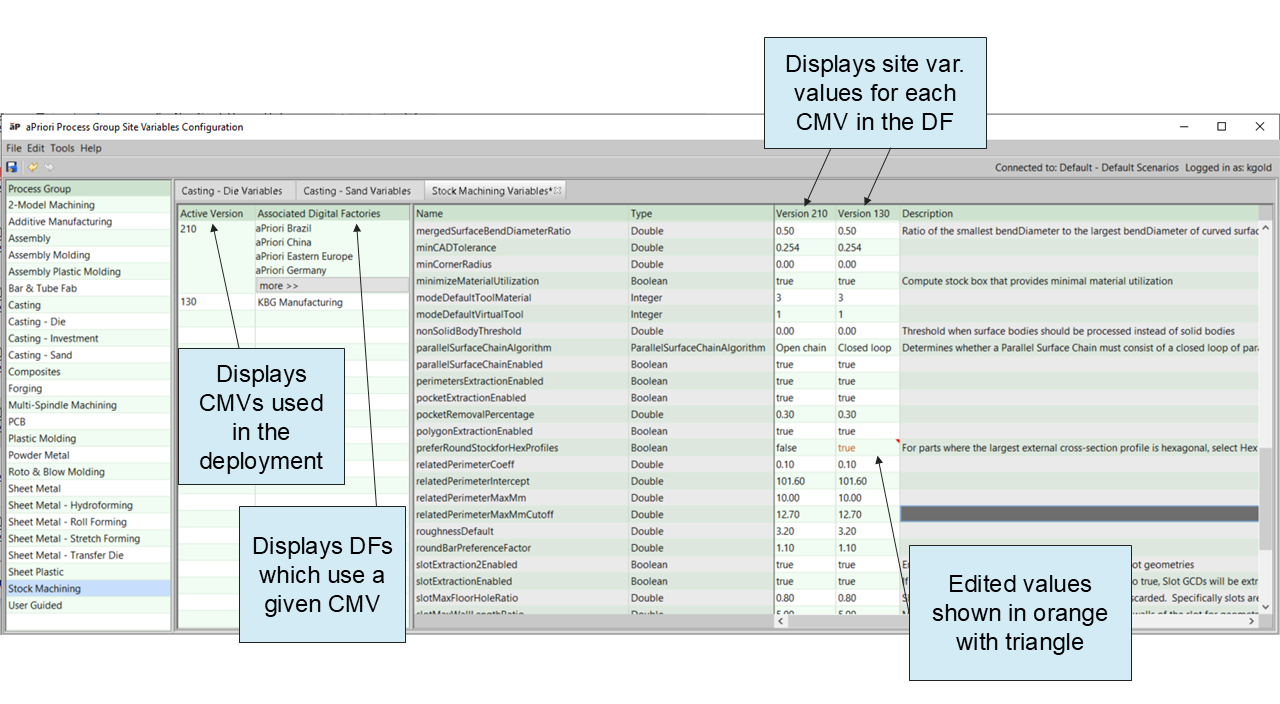
The table on the left has the following columns:
-
Active Version: This column lists the active versions of the process group, that is, the versions currently used by Digital Factories in the deployment.
-
Associated Digital Factories: This column lists the Digital Factories that use the version specified by the Version column.
In the table on the right, each row has the following fields:
-
Name: name of a site variables for the process group.
-
Type: data type of the site variable.
-
Version fields: There is one field for each currently active version. The field for a given version contains the value of the site variable for that version.
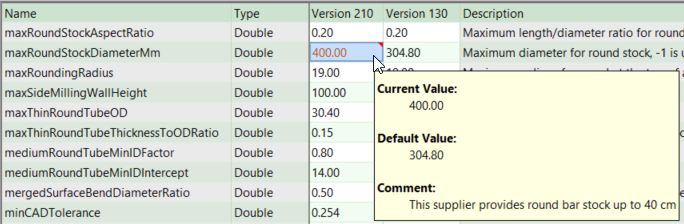
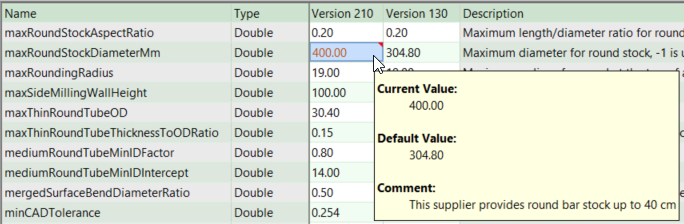
Values that have been changed from the default value are displayed in orange, and there is an orange, triangular icon in the upper right corner of its cell. When you hover over a changed value, a tool tip displays the current, value, default value, and a comment.
-
Description: documents the site variable's effects.
-
Editing site variables
-
Review the deployment site shown in the aPriori Process Group Site Variables toolbar to verify that you are editing the global variables for the correct deployment.
For example, in the figure above, the tool will edit global variables at the Default: Default Scenarios site.
If the deployment site is incorrect, change the selection.
-
Double-click a Version field to edit its value.
After you modify the value, it is displayed in orange and there is an orange, triangular icon in the upper right corner of its cell.
-
Enter a comment related to the change in value. This is optional but recommended.
When you hover over the value, a tool tip displays the current, value, default value, and comment.
-
Select File > Publish Digital Factory from the Digital Factory Manager menu bar or click
 in the toolbar to save your changes.
